Talk to your computer
Press a key, talk, press it again.
-
Windows
Install
Download ShoutAbout for Windows and open ShoutAbout-Setup.exe. Windows asks first: click More info, then Run anyway. Then Yes, Next and Finish.
Mac
Install
Download ShoutAbout for Mac, open ShoutAbout.dmg and drag ShoutAbout into Applications. Open it, and click Open when macOS asks.
Allow the microphone, and turn on ShoutAbout under Accessibility so it can paste.
-
Open it
Getting ready
ShoutAbout downloads the right speech model for your computer.

-
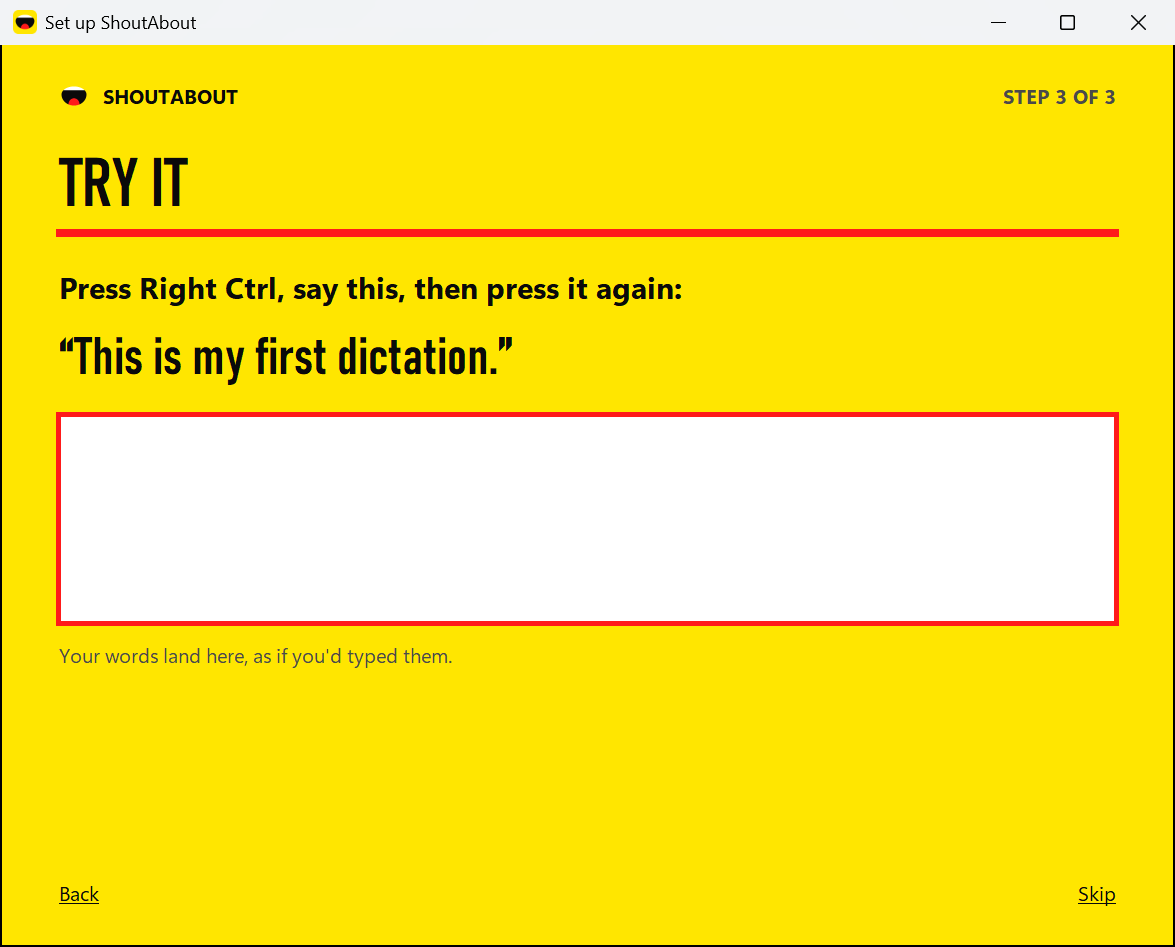
Try it
Say something
Press Right Ctrl (Right ⌘ on a Mac), say the line, press it again.
-
Done
Talk anywhere
Press your key in any app, talk, press it again.

iPhone on its own
Your iPhone writes the words down and copies them. Works anywhere.
-
Open the app
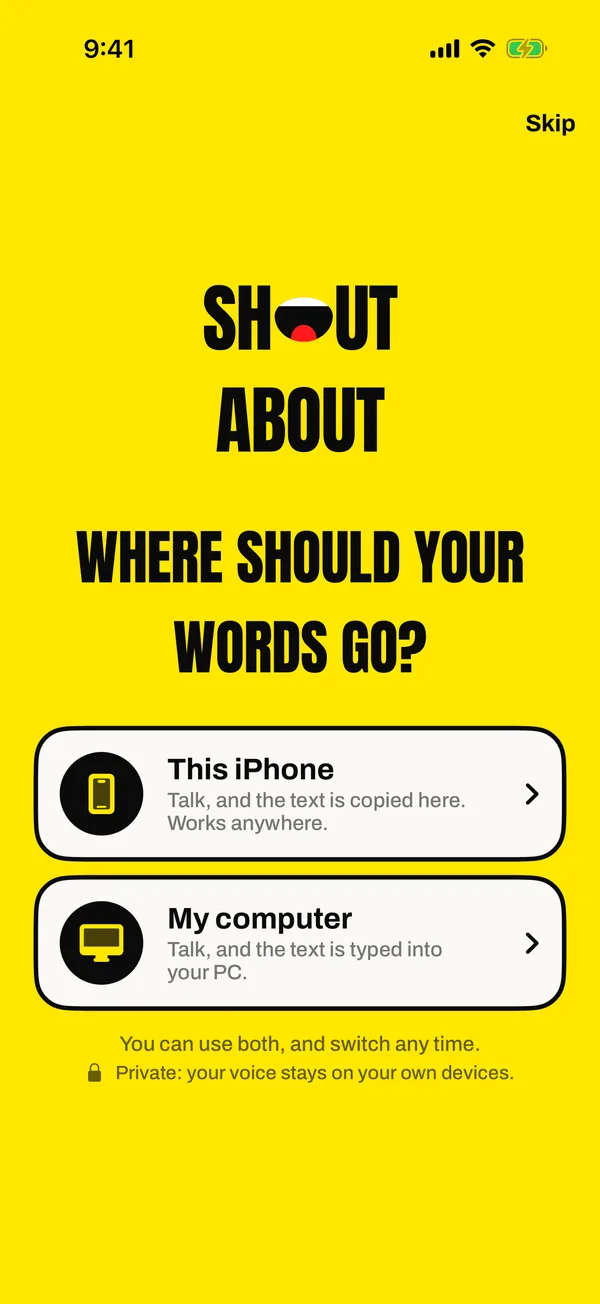
Where should your words go?
Get the iPhone app, open it, and tap This iPhone. Then allow the microphone.
-
Optional
One press to talk
Open Settings › Action Button, swipe to Controls, tap Choose a Control, then pick ShoutAbout › Dictate.
Then press the Action Button, talk, and press it again. No need to open the app.
No Action Button? Add Dictate to Control Center instead.
Listening0:07 -
Talk
Tap & talk
In the app, tap the mouth and talk. Tap again to finish. Your words are on your clipboard.
ComputerPhone Copied! On your clipboard. Paste it anywhere.
iPhone → computer
Talk into your iPhone, and your computer types it. Both need to be on the same Wi-Fi.
-
On your computer
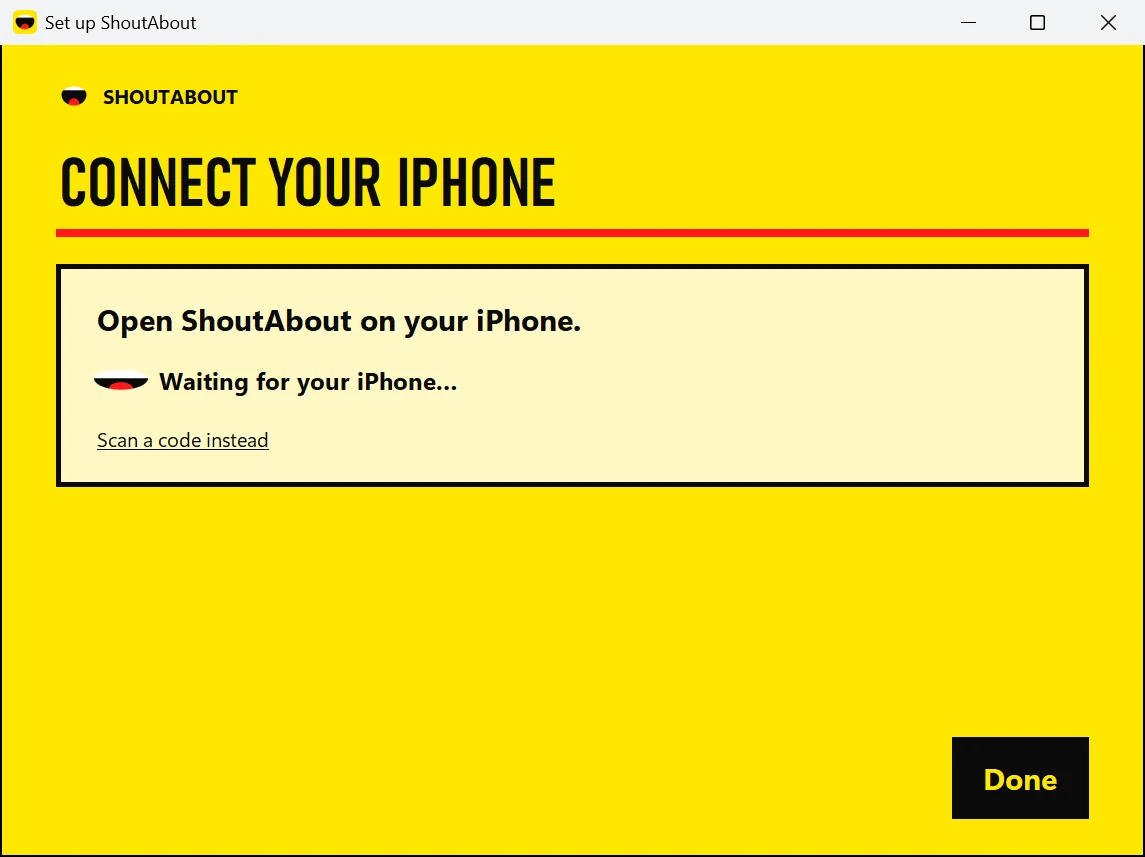
Connect your iPhone
At the end of setup, or later in Settings › Add a phone.
-
On your iPhone
Tap your computer
Open ShoutAbout and tap My computer (or Settings › Connect a computer). Tap your computer when it shows up.
When iOS asks about your local network, tap Allow.
-
Both
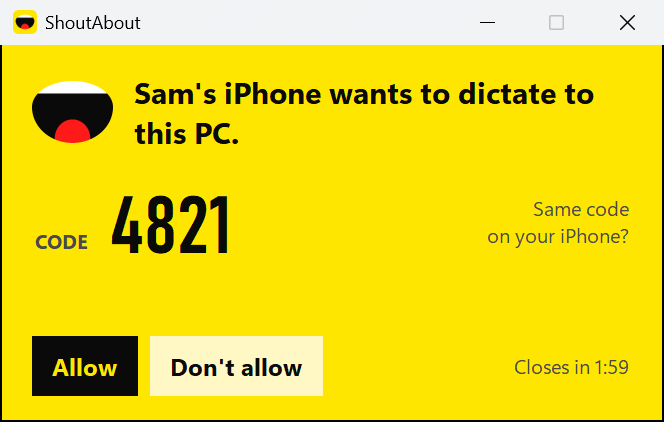
Check the code, click Allow
Your iPhone and your computer show a 4-digit code. If they match, click Allow on your computer.
-
Talk
Choose your computer and talk
At the top of the app, choose your computer instead of Phone. Tap the mouth, talk, tap again. Your words appear wherever you're typing on your computer.
ComputerPhone Pasted! On your computer, where you're typing. -
Away from home
It still works
If your computer can't be reached, your iPhone writes the text itself and puts it on your clipboard.
ComputerPhone Copied! Your PC isn't reachable.
Something not working? See the quick fixes.